
How Amazon Kids parental controls work on Fire tablets
Advertisement
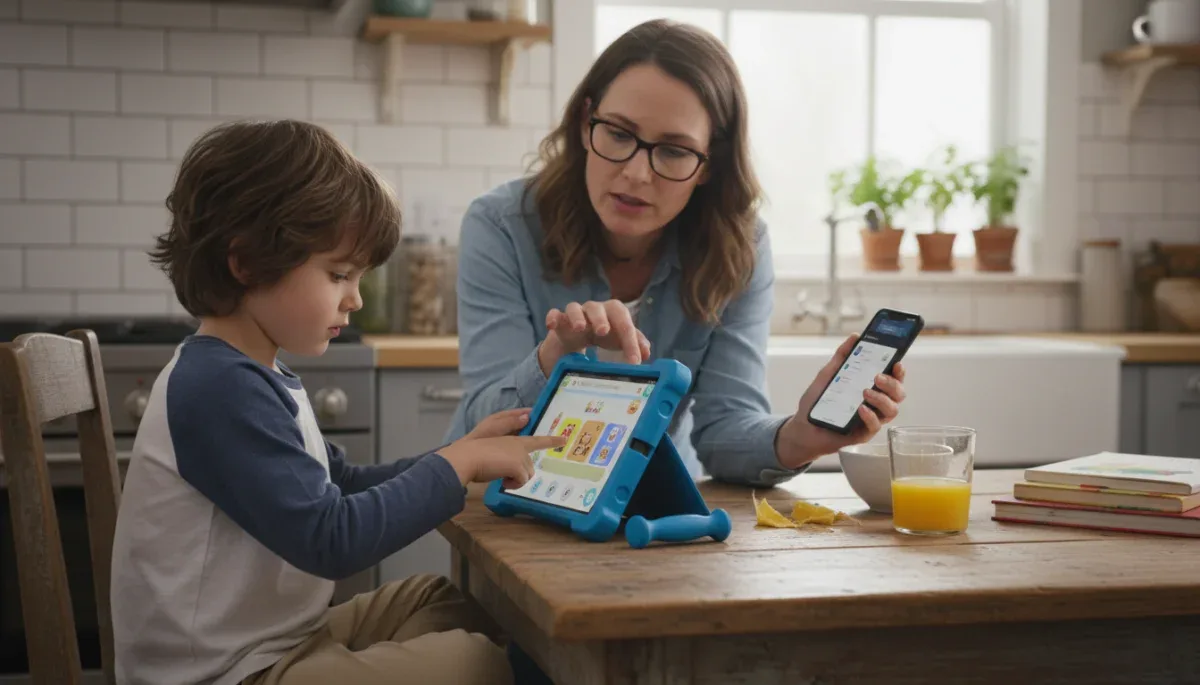
Amazon Kids parental controls work on Fire tablets by creating a sandboxed child profile that restricts access to the wider internet, disables digital store purchases, and enforces boundaries set by a parent. This system helps families establish consistent digital rules, but it requires initial setup time and ongoing adjustments as children mature.
Fire tablets run Fire OS, a proprietary operating system based on Android. When an adult configures an Amazon Kids profile on the device, the operating system locks the child out of system settings, social media platforms, cloud storage libraries, and standard web browsers. Instead, the tablet displays a simplified carousel containing pre-approved apps, digital books, educational videos, and age-curated content. Parents maintain administrative control behind a master lock screen password or PIN, which must be entered to exit the child profile, make system changes, or access the adult profile.
Setting up child profiles and access boundaries
Every administrative rule on a Fire tablet connects directly to an individual child profile rather than the physical hardware itself. Amazon allows household accounts to host up to four distinct child profiles across shared family devices. When an adult creates a profile, the system asks for the child's name, birthdate, and gender to establish an initial baseline for content delivery. Because settings attach to the profile rather than the tablet, those same restrictions automatically carry over if the family registers a second Fire device or replaces an older tablet.
Advertisement
Security relies entirely on the adult profile PIN. When an adult profile is protected with a numerical PIN or password, switching between profiles requires credential verification. If a child attempts to exit their profile from the quick settings menu, Fire OS prompts for the adult PIN. Without this code, the user cannot reach standard device settings, sideload applications from third-party sources, view adult photo libraries, or access content bought under the adult's standard Amazon account.
Key configuration steps for profile boundaries
- Create a dedicated child profile within device settings using the actual birthdate of the minor.
- Establish a four-digit parental control PIN that is distinct from standard household passwords.
- Disable location-based services within the child profile settings menu to enhance personal privacy.
- Review the storage management options to prevent offline media from filling internal device storage.
Parents can also determine whether their child sees older titles by adjusting the content age slider. Setting an age bracket filters the available catalog in Amazon Kids, ensuring that a younger sibling does not see recommendations designed for older elementary school students.
Managing screen time limits and daily goals
Time management features inside Amazon Kids allow adults to set global shutdowns alongside category-specific boundaries. Through the daily limits interface, parents can specify an exact bedtime when the tablet locks down for the night, as well as a wake-up time when access restores the next morning. These schedules can run uniformly throughout the week or alternate between weekdays and weekends, reflecting different household routines on school nights.
In addition to strict curfew hours, Amazon Kids provides granular time allowances broken down by activity type. An adult can restrict entertainment software, such as streaming video and downloadable games, while leaving reading apps accessible without any cap. The operating system tracks active foreground usage, meaning that background downloads or idle home screens do not consume a child's allotted recreational minutes.
Categories available for individual time limits
- Apps and video games installed from the curated children catalog.
- Streaming video programs and movie downloads.
- Digital books accessed through the reading library.
- Curated web browsing through the restricted browser environment.
A notable feature within the time limit settings is the Learn First rule. When activated, Learn First temporarily blocks all entertainment content, games, and cartoons until the child completes a designated educational goal, such as reading an interactive book for thirty minutes or completing math applications. Once the device registers the required duration of educational activity, it unlocks access to standard games and recreational videos for the remainder of the daily allowance.
Curating content with age filters and manual approvals
Amazon Kids divides digital material using automated maturity tags that span ages three through twelve. By adjusting the dynamic age filter, parents establish an upper and lower threshold for automatic content population. For example, setting the range between six and eight hides toddler-oriented programming while screening out media developed for pre-teens. The algorithm references metadata provided by publishers alongside Amazon internal reviews to catalog each item.
Automated filters do not always match every family's values, so Fire OS includes tools for manual content additions and removals. Parents can visit the content management menu from the adult profile to push specific movies, audiobooks, and software applications directly into the child account. This includes compatible digital products purchased through the standard Amazon storefront, provided those items do not require external accounts that violate youth terms of service.
Conversely, if a specific title appears within the automatic library that a parent prefers to exclude, the title can be hidden permanently. Pressing and holding an app or video icon on the child home screen opens a contextual menu that includes the option to remove or block the item. Once blocked, the asset disappears from search queries and carousel recommendations within that specific child profile.
Web browsing restrictions and safety filters
Standard web browsers present significant safety challenges on mobile hardware, which is why Amazon Kids replaces the standard Silk browser with a restricted version when a child profile is active. By default, internet access inside a child profile is turned off entirely until an adult explicitly toggles it on within the parental control settings. When enabled, parents can choose between two primary operational modes: a curated whitelist or an automated open filter.
The curated mode restricts web browsing exclusively to an Amazon-vetted list of websites and embedded web videos. Amazon maintains thousands of pre-screened URLs focused on education, youth publications, and school research. Children cannot type a random address into the navigation bar to navigate away from these designated domains; clicking an external link that leads outside the approved network simply triggers a notification that the page is unavailable.
The broader filtered mode allows children to browse the wider internet while an algorithmic filter blocks known adult domains, social networks, and unmoderated forums. Even in this wider mode, parents have the administrative capability to add specific URLs to an approved list or ban particular web addresses completely. Web browsing history remains recorded and viewable, enabling adults to audit recent searches and site visits through administrative menus.
Using the Amazon Parent Dashboard remotely
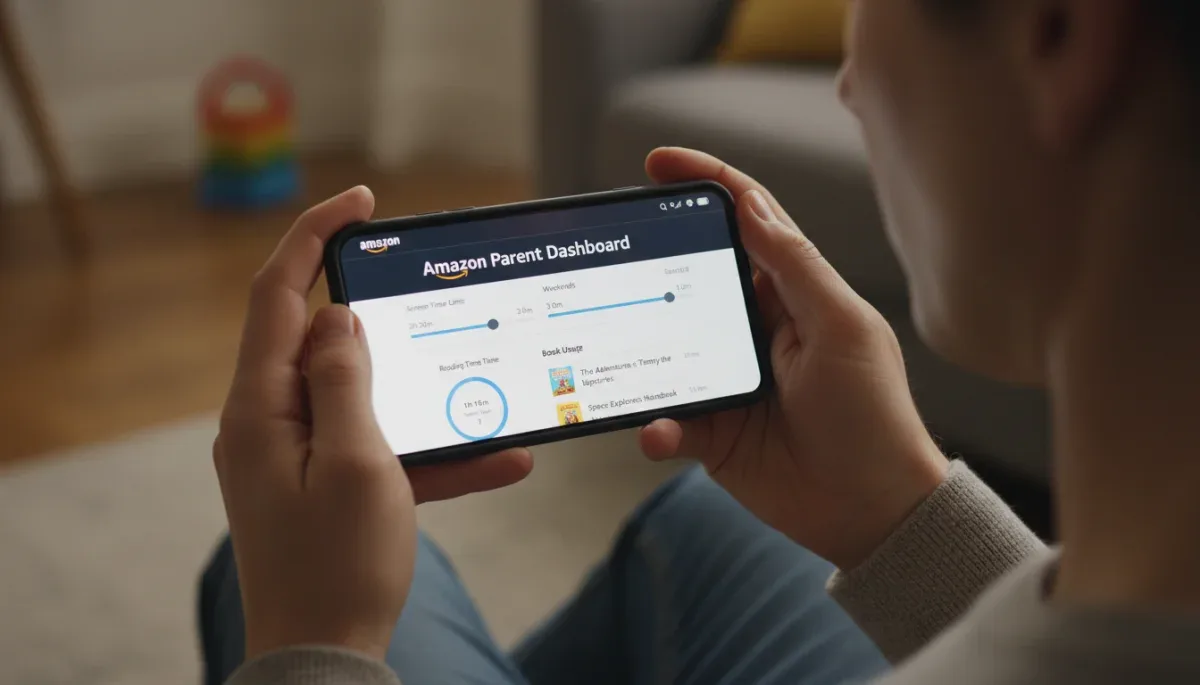
Adjusting controls does not require physical access to the Fire tablet once initial setup finishes. Amazon hosts a web-based portal known as the Amazon Parent Dashboard, accessible via standard desktop browsers or through the dedicated Amazon Kids mobile application on iOS and Android phones. Through this portal, adults can observe device usage metrics, update curfews, and modify content allowances in real time over any active internet connection.
The Parent Dashboard displays historical activity data showing how many minutes a child spent reading, playing games, browsing approved websites, or watching videos over the past day, week, or month. The service groups this information into distinct charts, giving families insight into recreational patterns. If an adult determines that an adjustment is necessary during the middle of the day, moving a slider on the smartphone app immediately pushes the updated restriction to the Fire tablet over Wi-Fi.
Remote controls supported by the dashboard
- Pause device access instantly for dinner, chores, or family conversations.
- Adjust daily time allowances, bedtime curfews, and educational reading goals.
- Grant or revoke access to specific digital books, video titles, and approved applications.
- Review recent web history and searches conducted within the filtered browser.
The dashboard also features Discussion Cards for select educational titles and books. These cards provide parents with chapter summaries, thematic overviews, and suggested conversational questions to help adults engage with what their children read, even if the parent has not read the material themselves.
Handling store purchases and app downloads
Unintentional in-app purchases represent a common financial concern for families using modern smart devices. Within an Amazon Kids profile on a Fire tablet, commercial storefronts and microtransactions are disabled by default. The standard Amazon retail store, the full Amazon Appstore, and third-party digital purchase prompts cannot execute from inside the child shell.
Children cannot download arbitrary apps, nor can they purchase virtual currency, extra game levels, or subscription tiers within active software. When an application offers optional in-app purchases, Fire OS intercepts the transaction request. The child sees a message stating that purchases are blocked, protecting the adult credit card linked to the primary household account from unexpected digital billing.
If a child desires a specific game that is not included in their existing catalog, the profile offers a request feature. The child taps a request button, which sends a notification to the Parent Dashboard. The adult can then read the application description, review developer privacy notices, check third-party data collection details, and decide whether to approve or decline the download remotely. If approved, the software installs to the device without exposing the account password or payment methods to the minor.
At a glance
| Control factor | What to know |
|---|---|
| Profile boundary | Locks children into a sandboxed interface secured by the adult account PIN. |
| Time management | Enforces automatic bedtime curfews and allows separate time caps for apps, games, and books. |
| Content isolation | Excludes adult media libraries and disables in-app purchases automatically. |
| Remote adjustments | Allows parents to pause the tablet and adjust rules using the web-based Parent Dashboard. |
Frequently asked questions
Can a child bypass Amazon Kids on a Fire tablet?
A child cannot exit the Amazon Kids environment without entering the four-digit parental control PIN. If the tablet restarts, it automatically boots directly back into the child profile. The main vulnerability is a child observing an adult entering the PIN on the touchscreen, so parents should change credentials periodically.
Do parental controls work if the Fire tablet is offline?
Yes, all active time limits, bedtimes, age restrictions, and offline content rules remain operational without an active internet connection. The internal system clock enforces schedules locally. However, parents cannot push remote setting changes or view updated usage metrics through the dashboard until the device reconnects to Wi-Fi.
Is a paid subscription required to use parental controls?
No, standard parental controls are built into Fire OS for free. An optional Amazon Kids+ subscription provides access to an expanded digital library of books, games, and videos, but the core tools—including time limits, profile locks, store blocking, and web filters—remain free on all Fire tablets.
Can parents install external apps like Disney+ or Netflix?
Yes, adults can install external streaming applications within their adult profile and manually share them to the child profile. Once shared through the content management settings, the application appears inside the child interface, subject to the overall application time caps established by the parent.
The bottom line
Amazon Kids parental controls provide dependable software boundaries that prevent unauthorized spending, restrict unmoderated internet browsing, and limit screen time on Fire tablets. While these tools reduce everyday digital friction, software settings cannot replace direct conversations about healthy technology habits. Before handing the tablet to a child, parents should verify their administrative PIN and confirm that content limits align with their child's current developmental stage on the official Amazon Parent Dashboard.
Written by
Lucas Bastos
Lucas Bastos writes about societal shifts for portalreborn.com. Each article explains how things work, compares published details such as prices, policies and program rules, and points readers to the official source before they decide.